How I set up Claude to post my videos to YouTube Shorts automatically
A plain-English, step-by-step guide to adding YouTube to a free auto-poster, so every video goes to Shorts, Instagram and Facebook three times a day. No coding needed.
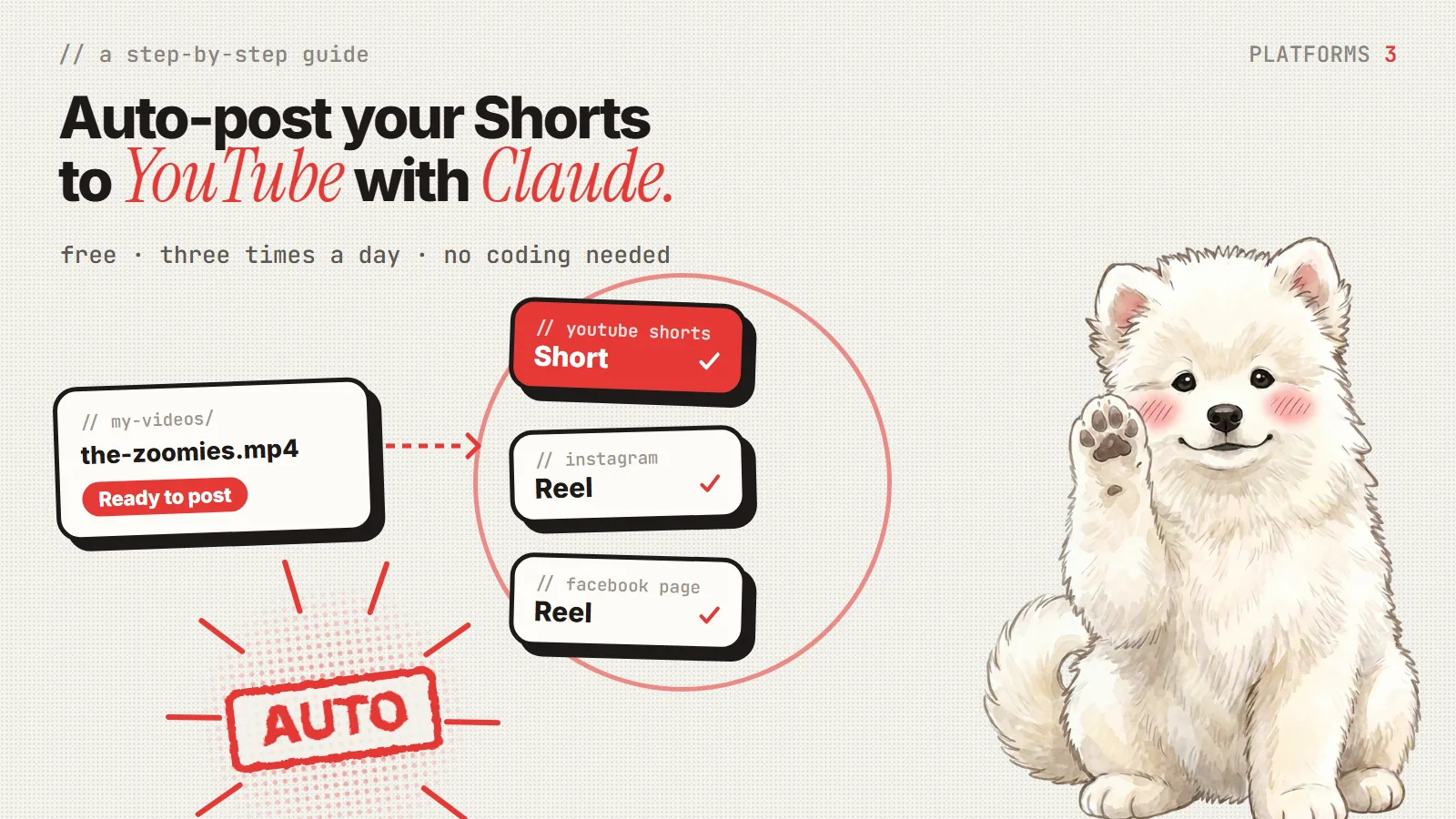
My videos already post to Instagram and Facebook on their own. YouTube Shorts was the missing piece. Now one finished video goes to all three at breakfast, lunch and dinner, and I never open YouTube Studio to upload anything.
This guide walks you through adding YouTube, one click at a time. You don't need to know how to code. Claude writes the code. Your part is a few settings in Google's dashboard, because those are your accounts.
If you haven't set up Instagram and Facebook yet, start with the Instagram and Facebook guide. This one adds YouTube to the same auto-poster. It also works on its own if YouTube is all you want.
Set aside about 30 minutes. Most of it is Google's settings pages.
The big picture
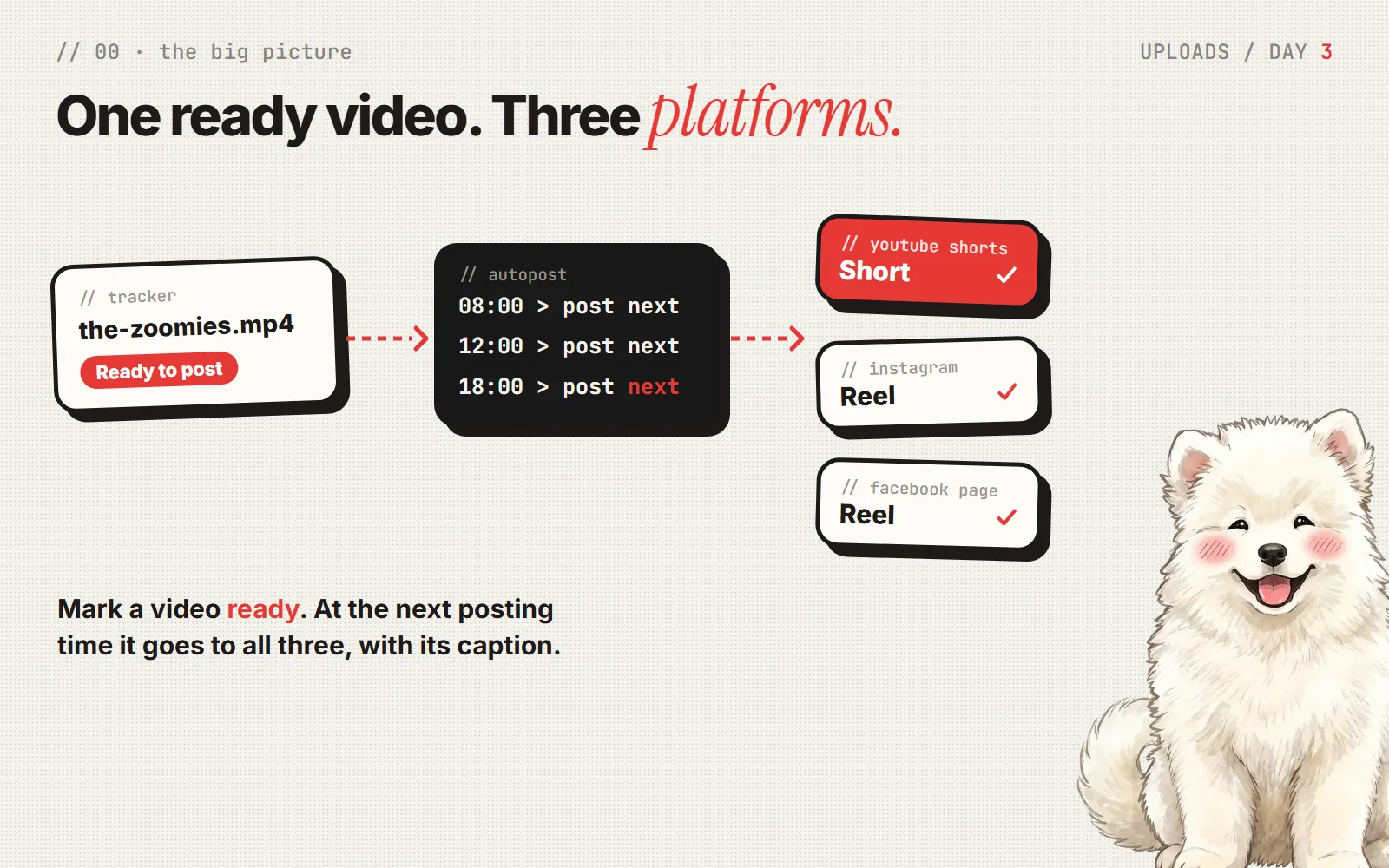
Here's what you'll end up with:
- You finish a video and mark it Ready to post in your list.
- Three times a day, a small program on your computer wakes up.
- It uploads the oldest ready video to YouTube Shorts, Instagram and Facebook, all in the same run.
- On YouTube it fills everything in for you: the title (with #Shorts), the description from your caption, tags from your hashtags, and your cover image as the thumbnail.
- It marks the video Posted, so nothing goes out twice.
It's free. YouTube's own upload connection (the YouTube Data API) costs nothing, and you don't need a credit card.
A few words you'll see
Come back here if a word trips you up.
- Google Cloud: Google's dashboard for developers. You'll only use a few pages of it.
- Project: a folder in Google Cloud that holds your settings. Yours will hold one thing: permission to upload to YouTube.
- API: the official "back door" YouTube gives programs so they can upload for you, with your permission.
- Sign-in screen (OAuth): the "Allow this app?" page you've seen when logging in with Google somewhere. You'll set up your own, and you'll be the only person who ever sees it.
- Scope: one specific permission, like "upload videos". You'll ask for two.
- Client file: a small file Google gives you that identifies your auto-poster. Treat it like a key.
- Quota: how much you can use the API each day for free. It's enough for about 6 uploads a day.
What you need before you start
- A YouTube channel. The program can only upload to a channel that already exists.
- A Google account that owns or manages that channel.
- A simple website with a privacy policy and terms page. Google asks for these before it lets your sign-in last more than 7 days. Any free site works. Mine is this blog: the privacy and terms pages are linked at the bottom of every page.
- Claude, set up so it can work with files on your computer. I use Claude Code in the Claude desktop app.
Part 1: Make sure your channel exists
- Go to youtube.com while signed in to your Google account.
- Click your profile picture. If you see Create a channel, do that first.
- I recommend a brand channel: under Settings → Add or manage your channel(s) → Create a channel. It has its own name, keeps the business separate from your personal profile, and lets you add helpers later without sharing your password.
Two things I ran into:
- My first-choice handle was taken. That's common. Add or drop a word (like "the") or match your website's name. People find you by your display name and the link in your bio, so a slightly different handle is fine.
- YouTube doesn't allow "|" in channel names. Use a dash instead, like "Misu - The Same Questions".
✅ Done when: you can open your channel page and see its name.
Part 2: Create a Google Cloud project and turn on YouTube
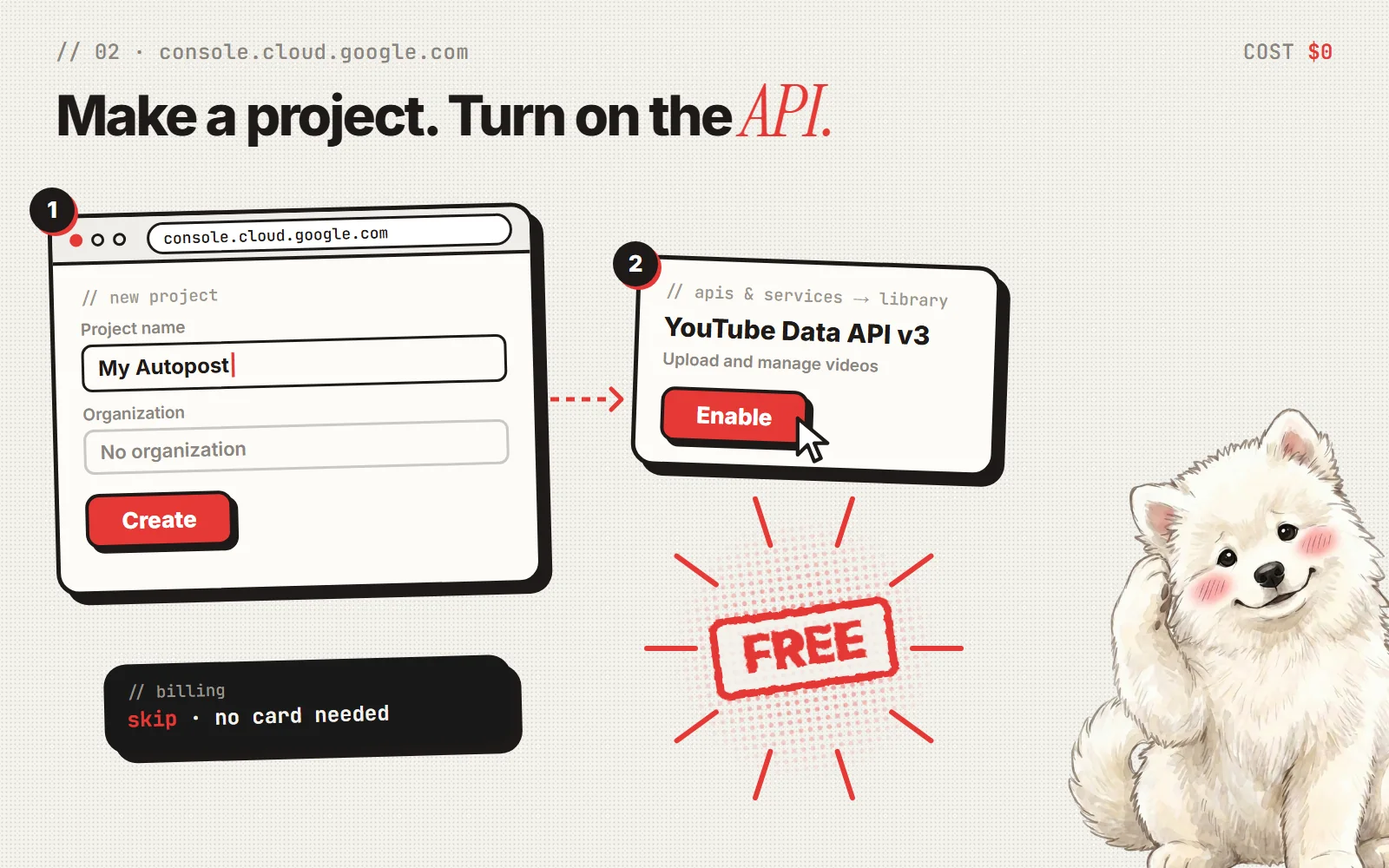
- Go to console.cloud.google.com and sign in with the same Google account.
- At the top, click the project picker, then New project.
- Name it something simple, like My Autopost. Leave Organization as No organization. Click Create.
- Make sure your new project is selected at the top of the page.
- Open the menu (☰) and go to APIs & Services → Library.
- Search for YouTube Data API v3, open it, and click Enable.
Skip any billing or "free trial" offers. The YouTube API works without a card.
✅ Done when: the YouTube Data API v3 page says Enabled (or shows a Manage button).
Part 3: Set up your sign-in screen
This is the page you'll see once when you give your auto-poster permission. Google calls this section Google Auth Platform (older screens say OAuth consent screen).
- Open Google Auth Platform (or OAuth consent screen) and click Get started.
- App name: something plain, like My Autopost. It can't contain "Google" or "YouTube".
- User support email: pick your Gmail from the dropdown.
- Audience: External.
- Contact information: your email. Agree to the terms and click Create.
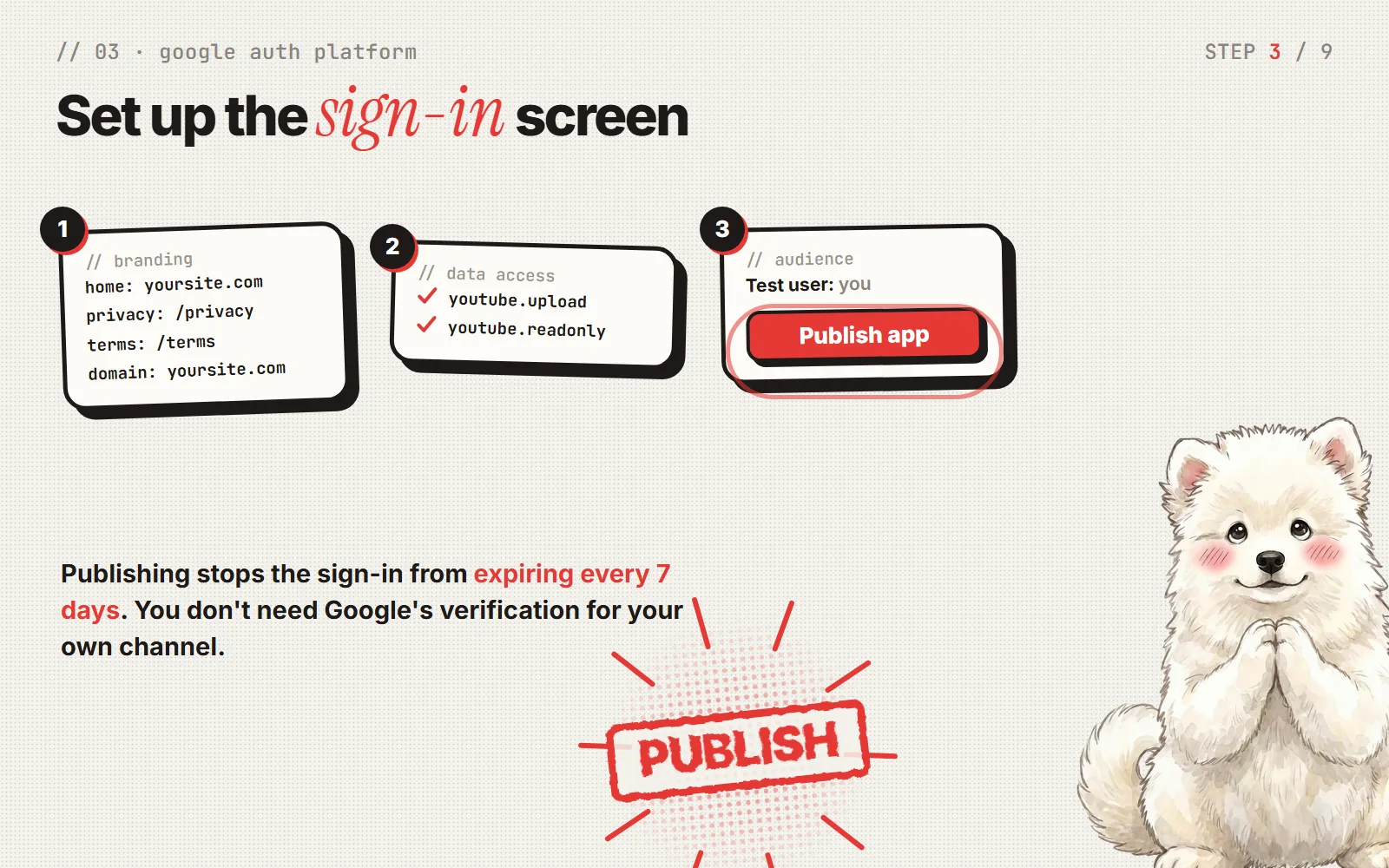
- Branding (left menu). Fill in:
- App home page: your website, like
https://yoursite.com - Privacy policy link:
https://yoursite.com/privacy - Terms of service link:
https://yoursite.com/terms - Authorized domains → Add domain:
yoursite.com(nohttps://, nowww, no slash). Press Enter so it turns into a chip. - Leave the logo empty. Click Save.
- App home page: your website, like
- Data Access → Add or remove scopes. Scroll to Manually add scopes, paste this, then click Add to table, Update and Save:
https://www.googleapis.com/auth/youtube.upload,https://www.googleapis.com/auth/youtube.readonly
- Audience. Under Test users, add your own Google account. Then click Publish app → Confirm.
About that last step. Google shows a warning about verification. You can ignore it for your own channel. Publishing does one useful thing: your sign-in stops expiring every 7 days. Without it, you'd have to log in again every week.
✅ Done when: Audience says In production.
Part 4: Download your client file
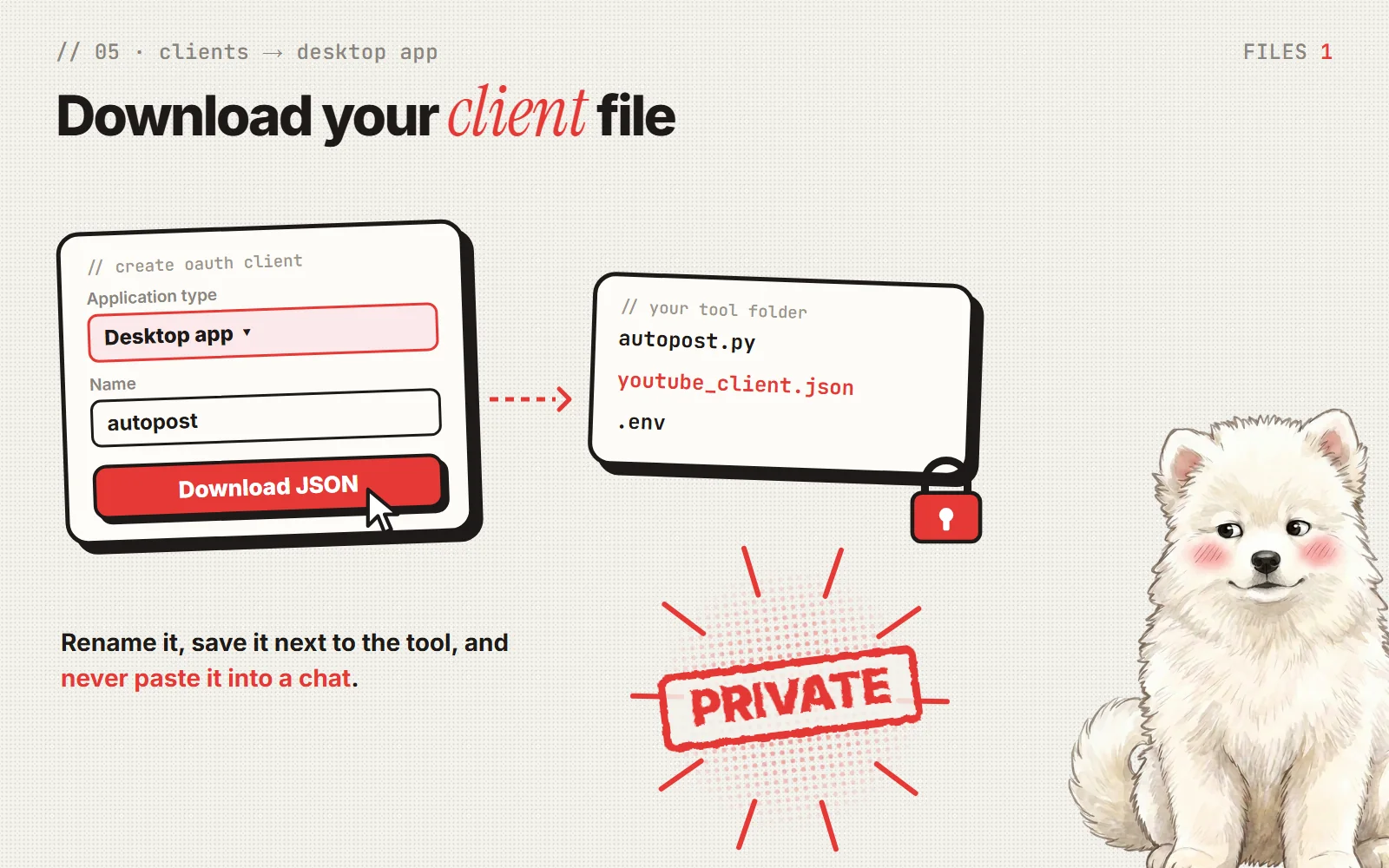
- Go to Clients (or Credentials → Create credentials → OAuth client ID).
- Application type: Desktop app. Name it autopost. Click Create.
- In the popup, click Download JSON. The file lands in your Downloads folder with a long name like
client_secret_….json. - Move it into your auto-poster's folder and rename it to
youtube_client.json.
Treat this file like your Instagram token: never paste it into a chat, an email or a screenshot. That includes your chat with Claude. Just tell Claude it's saved.
✅ Done when: youtube_client.json sits in the same folder as your auto-poster.
Part 5: Ask Claude to add YouTube
Give Claude something like this:
Add YouTube Shorts to my auto-poster using the official YouTube Data API. Use the youtube_client.json file in the folder for a one-time Google sign-in, and save the login so it renews itself and I never have to sign in again. When a video is posted, upload it to YouTube in the same run as Instagram and Facebook. Use the video's title with #Shorts, the caption as the description, its hashtags as tags, and set its cover image as the thumbnail. Never print or share my tokens or the client file.
If you're starting from scratch, add the parts from the Instagram and Facebook guide: the list of videos, the "Ready to post" status, and the test and practice modes.
Part 6: Sign in once
Claude runs the one-time sign-in. A Google window opens in your browser.
- Pick your Google account.
- If it asks you to choose an account or channel, pick your channel, not your personal name. This is the step most people miss.
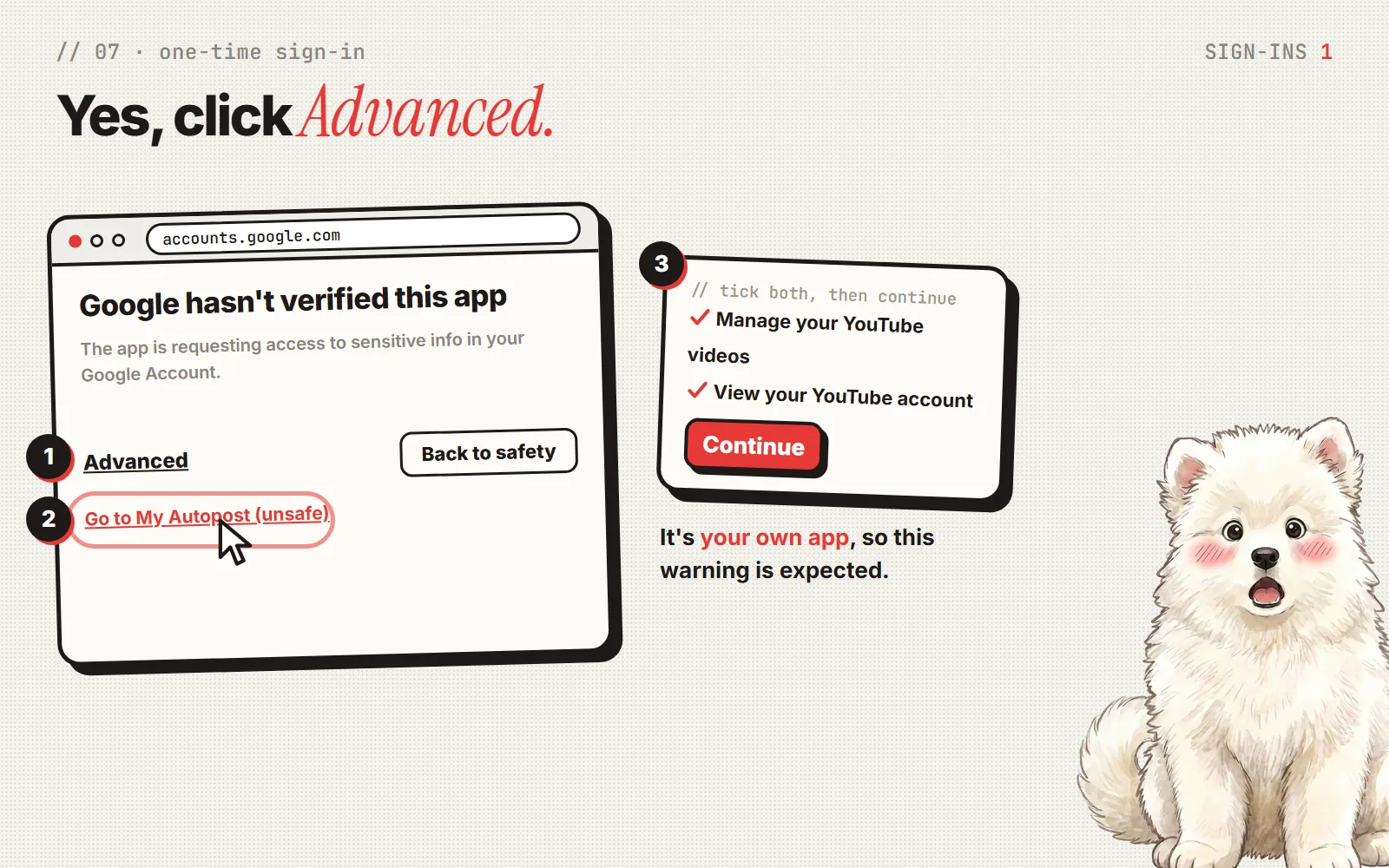
- Google says "Google hasn't verified this app." That's expected, because it's your own app. Click Advanced, then Go to My Autopost (unsafe).
- Tick both boxes ("Manage your YouTube videos" and "View your YouTube account") and click Continue.
- When the page says you can close the tab, you're done.
You only do this once. Your computer saves a login that renews itself. You'd only sign in again if you remove the app's access in your Google account or change your password.
✅ Done when: Claude tells you which channel it's connected to, and it's the right one.
Part 7: Upload one test Short
Ask Claude to upload one specific video to YouTube only. Then open YouTube Studio and check:
- The Short is on your channel.
- The title, description and tags look right.
- It's Public. If it says Private, see "If something goes wrong" below.
Part 8: Put it on autopilot
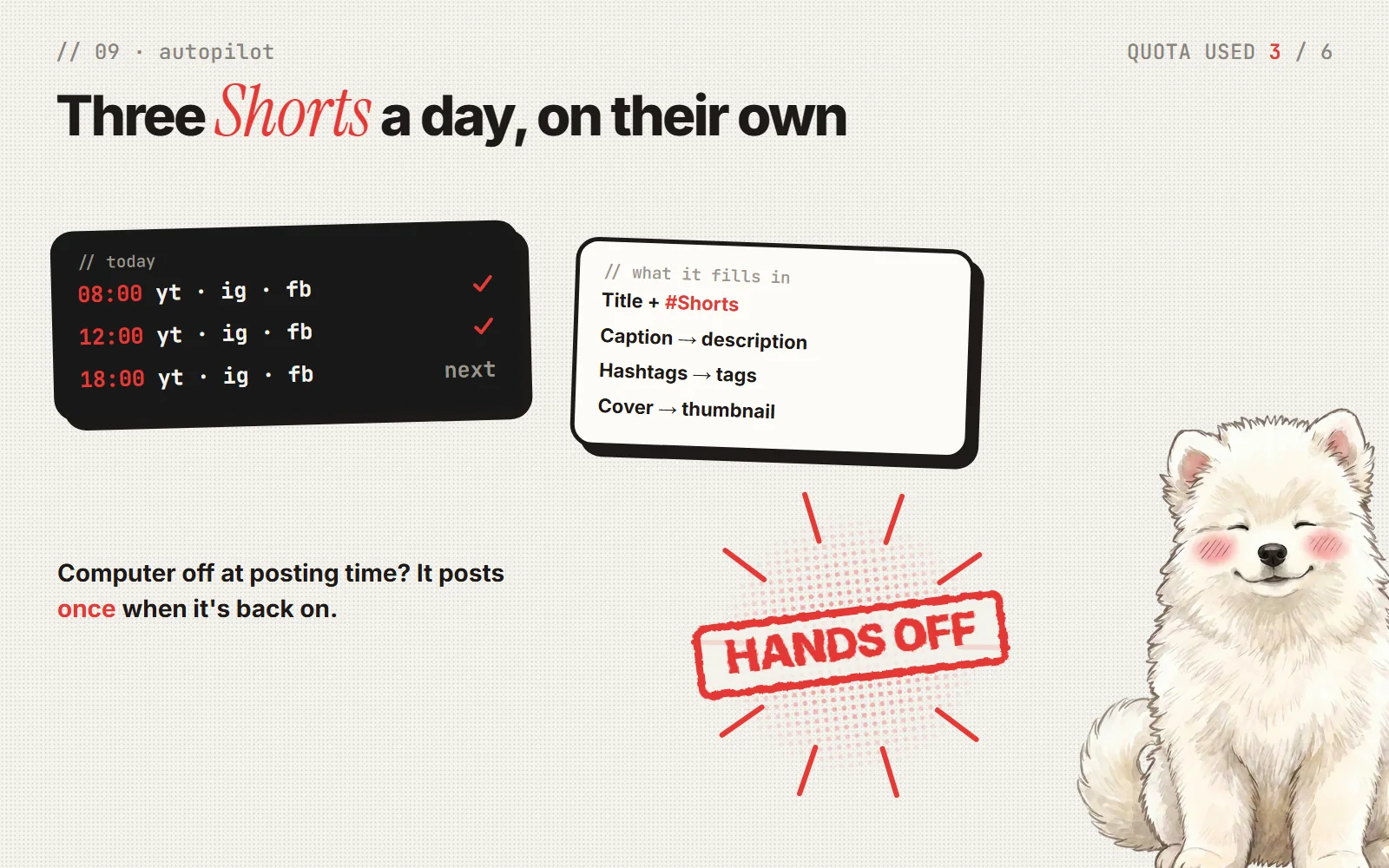
If your auto-poster already runs on a schedule, ask Claude to switch YouTube on in its settings. That's it. The same 8:00, 12:00 and 18:00 runs now post to YouTube too.
If this is your first platform, ask Claude to put the program on a schedule. On Windows it uses the built-in Task Scheduler, and on a Mac a similar built-in tool.
From then on, your whole routine is:
- Finish a video.
- Mark it Ready to post.
- That's it. It goes to YouTube, Instagram and Facebook at the next posting time.
Good to know:
- Each run posts one video. Ten ready videos go out over a few days, not all at once.
- About 6 uploads a day fit in YouTube's free quota. Three a day leaves plenty of room.
- Your computer has to be on, signed in and online. If it was off at a posting time, it posts once as soon as it's back.
- If you post a video yourself, tell Claude (or mark it Posted in your list). Otherwise the auto-poster will post it again.
Want your cover as the thumbnail?
YouTube picks a frame from the middle of a Short for its thumbnail, so a cover that only shows for the first half second gets skipped.
- Go to youtube.com/verify, signed in to your channel, and verify with your phone number. It's free and takes a minute. Google only allows custom thumbnails on verified channels.
- Ask Claude to set each video's cover as its thumbnail after upload.
Custom thumbnails show on your channel page, in search and in suggestions. The Shorts swipe feed may still show a video frame. That's how YouTube displays Shorts, not a failed upload.
If something goes wrong
"Publish app" is greyed out. Google needs your Branding page filled in first: home page, privacy policy link and authorized domain. Make sure those pages actually load in your browser.
Branding won't save. Check, top to bottom:
- The support email is picked from the dropdown, not left blank.
- The logo is empty. Uploading one triggers Google's review.
- The domain has no
https://,wwwor slash. - The developer contact email at the very bottom is filled in. It's easy to miss.
- The app name doesn't contain "Google" or "YouTube".
- Scroll the whole page for red text under a field.
Claude says your account has no YouTube channel. Either the channel doesn't exist yet (go back to Part 1), or you picked your personal account instead of the channel during sign-in. Sign in again and choose the channel.
Your Shorts upload as Private. New apps are sometimes forced to private until Google's free API compliance audit is done, which can take a few weeks. Until then, flip each Short to Public in YouTube Studio. It's one tap. Ask Claude to help you fill in the audit form.
It asks you to sign in again every week. The app is still in Testing. Go to Audience and click Publish app (Part 3).
"Quota exceeded." You've used the day's free uploads. They reset every day. Three posts a day won't hit this.
The same video posted twice. You posted or marked it by hand somewhere the auto-poster doesn't read. Tell Claude whenever you post manually, so it updates the list.
You think your client file leaked. In Google Cloud, delete that client under Clients, create a new one (Part 4), and sign in once more (Part 6).
How it works (optional, for the curious)
- The sign-in gives your computer a "refresh token". Each time the program runs, it trades that for a short-lived pass. That's why you never sign in again.
- The upload is in two steps: the program tells YouTube the title, description, tags and privacy, then sends the video file straight from your computer.
- The thumbnail is a third, small upload that sets your cover image.
- The quota: you get 10,000 free units a day, and one upload uses about 1,600. That's where "about 6 a day" comes from.
What does it cost?
$0 a month. The YouTube Data API is free, and the program runs on your own computer. You need a Claude plan to build it (Pro is $20/month), but once it's built it runs on its own.
For comparison, apps like Buffer charge per account, so YouTube would be one more paid account on top of Instagram and Facebook. Here, adding YouTube costs nothing.
Why bother?
YouTube Shorts is a whole new audience for videos you've already made. Uploading each one by hand is the kind of chore that quietly stops happening. Now every video I finish shows up on three platforms, at three good times a day, without me touching a thing.
If you try this, start the same way I did: one channel, one test Short. Then let it run.